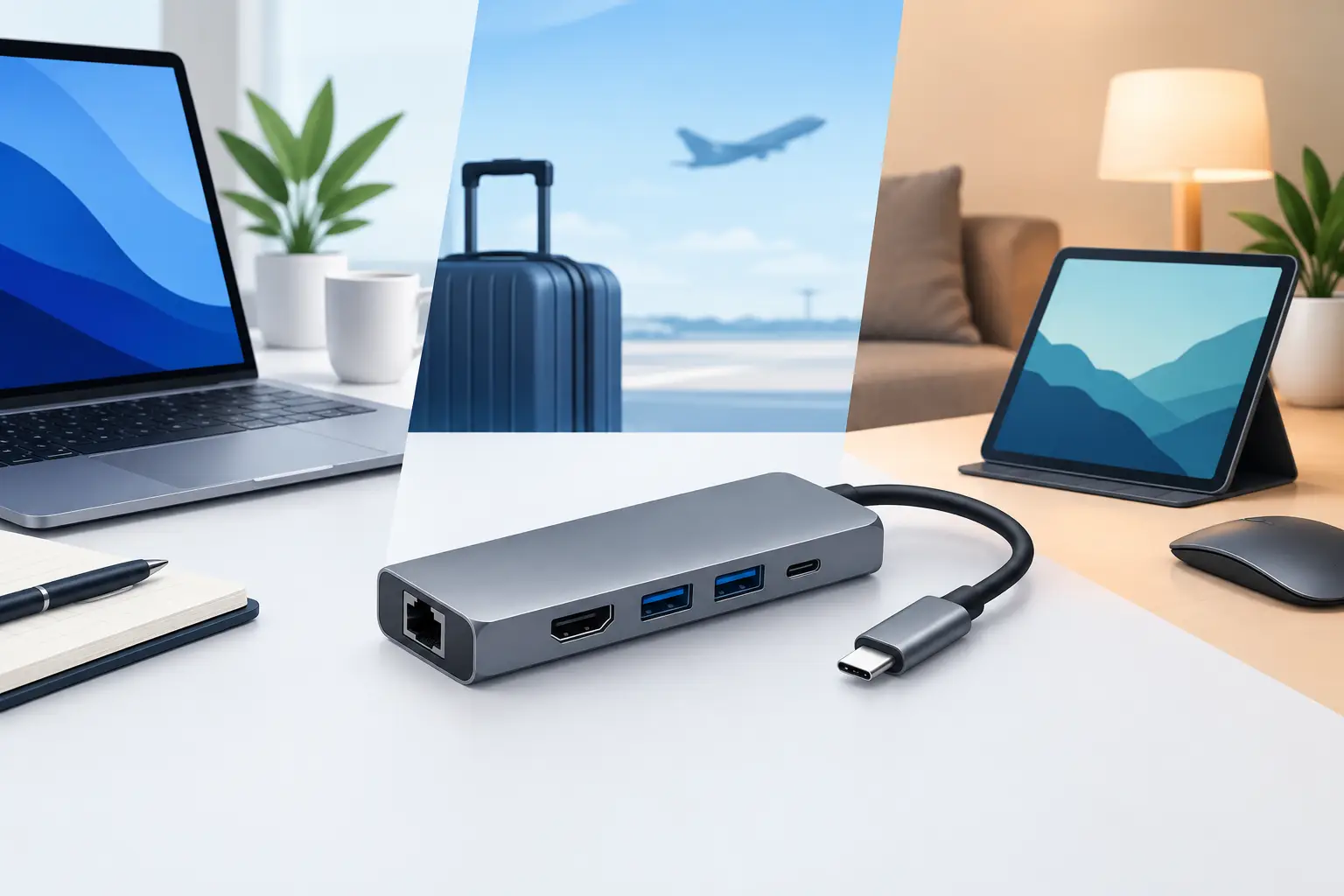
A laptop with two USB-C ports can feel oddly limited the moment you need a monitor, flash drive, wired internet, charger, and SD card at the same time. The best usb c hub is not the one with the longest port list. It is the one that supports the gear you actually use without slowing down your desk, draining your laptop, or creating a tangle of adapters.
For most buyers, that means looking past the product photo. A compact hub may be perfect for a travel bag but underpowered for a full workstation. A larger dock may handle dual displays and Ethernet but make no sense for a tablet used on the couch. Start with your setup, then buy the ports and power capacity that solve the problem.
What Makes the Best USB-C Hub?
A USB-C hub takes one USB-C connection from a host device and expands it into useful connections. Depending on the model, that can include USB-A ports, extra USB-C ports, HDMI, DisplayPort, Ethernet, SD and microSD card readers, audio, and pass-through charging.
The key limitation is bandwidth. One USB-C port has a finite amount of data and video capacity. A hub cannot create more bandwidth than the laptop, tablet, or phone provides. It simply divides that connection among the accessories attached to it. That is why a hub that works well for a keyboard, mouse, and 1080p display may not be the right choice for fast external storage and a 4K monitor at the same time.
Look for clear specifications rather than vague claims. The details that matter are video resolution and refresh rate, USB data speed, Power Delivery input, Ethernet speed, and whether the hub supports your device's display protocol.
Choose a Hub Based on How You Work
For a basic desk setup
If you use a laptop with a mouse, keyboard, monitor, and charger, a hub with HDMI, two or three USB ports, and USB-C Power Delivery is usually enough. This is the practical middle ground for home offices, schoolwork, small-business desks, and shared workstations.
For a standard 1080p or 1440p monitor, HDMI support is commonly straightforward. If you use a 4K display, check the refresh rate. A hub listed as 4K at 30Hz can display a sharp image, but cursor movement and scrolling feel less fluid than 4K at 60Hz. For everyday documents, it may be fine. For design work, editing, or anyone accustomed to a smooth display, 60Hz is the better target.
For travel and mobile work
Travel hubs should earn their space. A small unit with HDMI, a USB-A port, a USB-C charging port, and an SD card reader covers most hotel-room, client-site, and airport-lounge needs. An attached cable is convenient because it is harder to lose, although a replaceable cable can be a better long-term choice if it gets damaged.
Avoid carrying a bulky dock just because it has more ports. If you do not need Ethernet or multiple displays on the road, a lighter hub is easier to pack and less likely to strain the USB-C port when used on a small table or airplane tray.
For fast file transfers
Photographers, video editors, makers, and technicians should pay close attention to USB speed. USB 2.0 ports are fine for a mouse, keyboard, printer, or receiver, but they are slow for moving large files. Look for USB 3.0, USB 3.1, USB 3.2, or clearly stated 5Gbps or 10Gbps data speeds when connecting external SSDs, card readers, or backup drives.
A card reader is also not automatically fast just because it is built into a hub. Check whether it supports the card format and speed class you use. A fast SD card connected through a slow reader will still transfer slowly.
For a permanent workstation
A desk that stays put can benefit from a larger hub or docking-style unit with Gigabit Ethernet, multiple display outputs, more USB ports, and higher Power Delivery input. Wired Ethernet is especially useful where Wi-Fi is crowded, inconsistent, or too slow for large uploads and remote work.
A permanent setup is also where port placement matters. Front-facing USB ports are convenient for flash drives and charging cables. Rear-facing ports keep monitor, Ethernet, and power cables out of sight. Neither layout is universally better, but a little planning keeps a useful desk from becoming a cable pile.
Power Delivery Is Where Many Buyers Get Caught
Pass-through charging lets you connect your laptop charger to the hub and power the laptop through the hub's USB-C cable. It is one of the most useful features to have, but the wattage needs to match your equipment.
A hub might accept 100W of Power Delivery input while reserving some power for itself and connected devices. Your laptop may receive less than the number printed on the package. For a 13-inch laptop, that is often no issue. For a larger performance laptop, it can mean slower charging or a battery that continues to drop under heavy use.
Check your laptop charger's recommended wattage, then choose a hub rated to handle at least that amount. If your computer needs 65W, a hub with 100W Power Delivery input provides useful headroom. Also remember that the charger is usually sold separately from the hub. Reusing a low-watt phone charger may power the hub but will not properly run and charge a laptop.
Display Support: Read the Fine Print
Display support is the most common source of USB-C hub disappointment. HDMI and DisplayPort connectors alone do not guarantee that every computer can run every display configuration.
Many USB-C laptops use DisplayPort Alt Mode for external video. Some USB-C ports carry data and charging only, while others support video output. Before buying, confirm that your computer's specific USB-C port supports external displays.
Dual-monitor setups deserve extra attention. Windows laptops may support two extended displays through Multi-Stream Transport, often called MST. Many Mac models handle external displays differently and may mirror screens or support fewer monitors through a standard hub. Silicon generation, operating system version, and laptop model can all change the result. If two independent displays are a must-have, verify compatibility with your exact computer rather than relying on a general dual-display claim.
For a single monitor, choose the connection your display already uses when possible. HDMI is common and convenient. DisplayPort can be a better fit for higher-refresh monitors. Using fewer converters means fewer potential points of failure.
Ports Worth Paying For
The right port mix depends on the job, but several features offer practical value across many setups:
- USB-A ports for existing keyboards, mice, printers, flash drives, and wireless receivers.
- USB-C data ports for newer accessories and external SSDs. Confirm that they transfer data, since some USB-C ports are charging-only.
- HDMI or DisplayPort that matches your monitor's resolution and refresh-rate needs.
- Gigabit Ethernet for dependable wired networking at a desk, shop, or job site.
- SD and microSD readers for camera, drone, and project files.
Audio jacks can be useful, but they are lower priority if your laptop already has one. VGA is worth considering only for legacy projectors and older business displays. Buying it just in case usually means paying for a port you will never use.
Cable Quality, Heat, and Everyday Reliability
The hub's short host cable is part of the product, not an afterthought. A loose connection can cause monitor flicker, dropped drives, charging interruptions, or accessories that disconnect when the desk moves. Choose a hub with solid strain relief and enough cable length to reach your laptop without pulling tight.
Some warmth is normal when a hub is sending video, charging a laptop, and operating several devices. Excessive heat, repeated disconnects, or a hub that becomes unstable during file transfers are not normal. For high-demand use, a metal housing can help dissipate heat, though design quality matters more than the material alone.
If you connect power-hungry accessories such as hard drives, capture devices, or multiple charging cables, consider a powered dock instead of a tiny bus-powered hub. Small hubs are excellent for light expansion. They are not designed to run every device on a production desk.
Buy the Hub You Will Use This Week
A good purchase starts with a quick inventory: your laptop model, charger wattage, monitor resolution, current peripherals, and the one connection you keep reaching for. That list will tell you whether you need a slim travel hub, a practical six-in-one model, or a desk dock with serious display and network support.
At VOLTKITS, practical accessories are easiest to shop when the specs match the job. Prioritize the connections you need now, leave room for one useful future upgrade, and skip feature-packed hubs that add cost without solving a real problem. The right hub should disappear into your workflow - until the moment it saves you from hunting for another adapter.